
Running a paperless office means handling your documents digitally instead of on paper, so the files you create, store, share and refer to live on screens rather than in filing cabinets. In practice it rarely means banning paper outright. The goal is to make the digital version the default way of working.
Paper use is still surprisingly high in most offices. The average office worker gets through around 10,000 sheets of paper a year, according to commonly cited paper-use figures. Most of it is printed copies of documents that already exist on a computer somewhere, and going paperless is mostly about closing that gap.
I’ll start with what paperless realistically looks like, then walk through capturing existing paper, deciding where files should live, making them findable, and sharing them. At the end I’ll explain why these projects often stall, so that you can avoid the mistakes and go truly paperless.
What “Paperless” Really Means in Practice
A paperless office is one where the digital file is the original and the authoritative copy, not a backup of a printout. Paper still appears now and then, but it’s the exception rather than the default.
I find that it helps to drop the all-or-nothing idea. Some documents genuinely need a wet signature or a physical copy, and chasing a literal zero-paper score wastes effort for no real gain. The useful target is simpler: stop printing things you don’t need to, and make sure the digital version is good enough that nobody feels they have to.
For example, my home office has very little paper. However, some documents are unavoidable and I do have a small filing cabinet for things that genuinely can’t be digital.
For most teams, a workable definition of paperless covers four habits:
- New documents are created and kept digitally by default.
- Incoming paper is scanned and filed rather than stacked in a tray.
- People can find a file in seconds instead of walking to a cabinet.
- Sharing a document means sending a link, not a photocopy.
Once you achieve these habits, you’re paperless in every way that matters. Maybe you’ll still have a printer in the corner, but if you’re only using it occasionally, then that’s okay. I still have a black and white printer, but it’s very rare that I need to print anything off for work.
Capturing and Digitizing Existing Paper
The first real task is turning the paper you already have into usable digital files. To save time (and storage space), it’s worth being deliberate about what you scan.
Don’t digitize the entire archive on day one. Instead, start with the documents people request or refer to regularly, because those are the ones costing you time on paper right now. Also include any documents that you’re legally required to keep. The dusty boxes in storage can wait, and some of them can be recycled under your retention rules rather than scanned at all.
For the documents that do need capturing, follow these tips to make the results far more useful later:
- Scan to searchable PDF. Use a scanner or app with OCR (optical character recognition) so the text inside the document becomes searchable, not just a flat image. A scanned page you can’t search is barely better than the paper original.
- Name files consistently as you go. Decide on a simple naming rule before you start, so the digital files arrive sorted and findable rather than as a heap of scan001, scan002. A clear file naming convention will save you lots of time once you have more than a handful of documents.
- Check quality once, in batches. Spot-check a scan looks right before you move on, so you’re not rescanning months later because the contrast was off.
For ongoing paper, like signed forms or posted invoices, set up a routine rather than a backlog. Scan as it arrives, file it straight away, and the pile never builds up again.
Where Your Documents Should Live
Once files are digital, the next decision is where they live. This decision is vital to a paperless office. Scattering documents across desktops, email attachments and personal drives recreates the filing-cabinet problem in digital form.
The principle is to pick one home for each set of documents and route everyone to it. Cloud storage like Google Drive or a shared network folder works well for internal working files. The aim is that there’s one current version of each document in one agreed place, rather than five near-identical copies nobody can tell apart.
It’s worth separating two different needs here:
- Day-to-day working files, the drafts people edit between themselves, can sit in shared storage.
- Finished documents that others need to read, such as policies, reports, forms and guides, are better published somewhere people can find and open them without rooting through folders. I’ll tell how how to do this in a minute.
I highly recommend. storing your paperless documents online. This is essential for backup purposes because if they’re only on your computer then that’s just as risky as having a single copy of a paper document that is vulnerable to fire or flood. By using something like Google Drive, Microsoft OneDrive or Dropbox, your files are automatically backed up. If you use the appropriate app to auto save the files to your computer’s filing system, then it means you have a local and an online copy without needing to do any backing up manually.
Making Digital Documents Findable
A document nobody can find is no more useful than one locked in a cabinet, so findability is the part that decides whether people stick with the digital version. If searching for a file is slower than asking a colleague, they’ll ask the colleague, and the paper habit creeps back.
Two things make digital documents easy to find:
- The first is a simple structure: a sensible set of categories or folders, with consistent names, so there’s an obvious place each file belongs. Decide on this before you have hundreds of files - my guide to how to organize documents walks through building one that holds up.
- The second is search. Beyond a certain number of documents, browsing folders stops working and people want to type what they’re after and get it. That’s exactly what folder structures alone can’t offer, and it’s the main reason a list of links or a shared drive starts to feel clumsy once a collection grows.
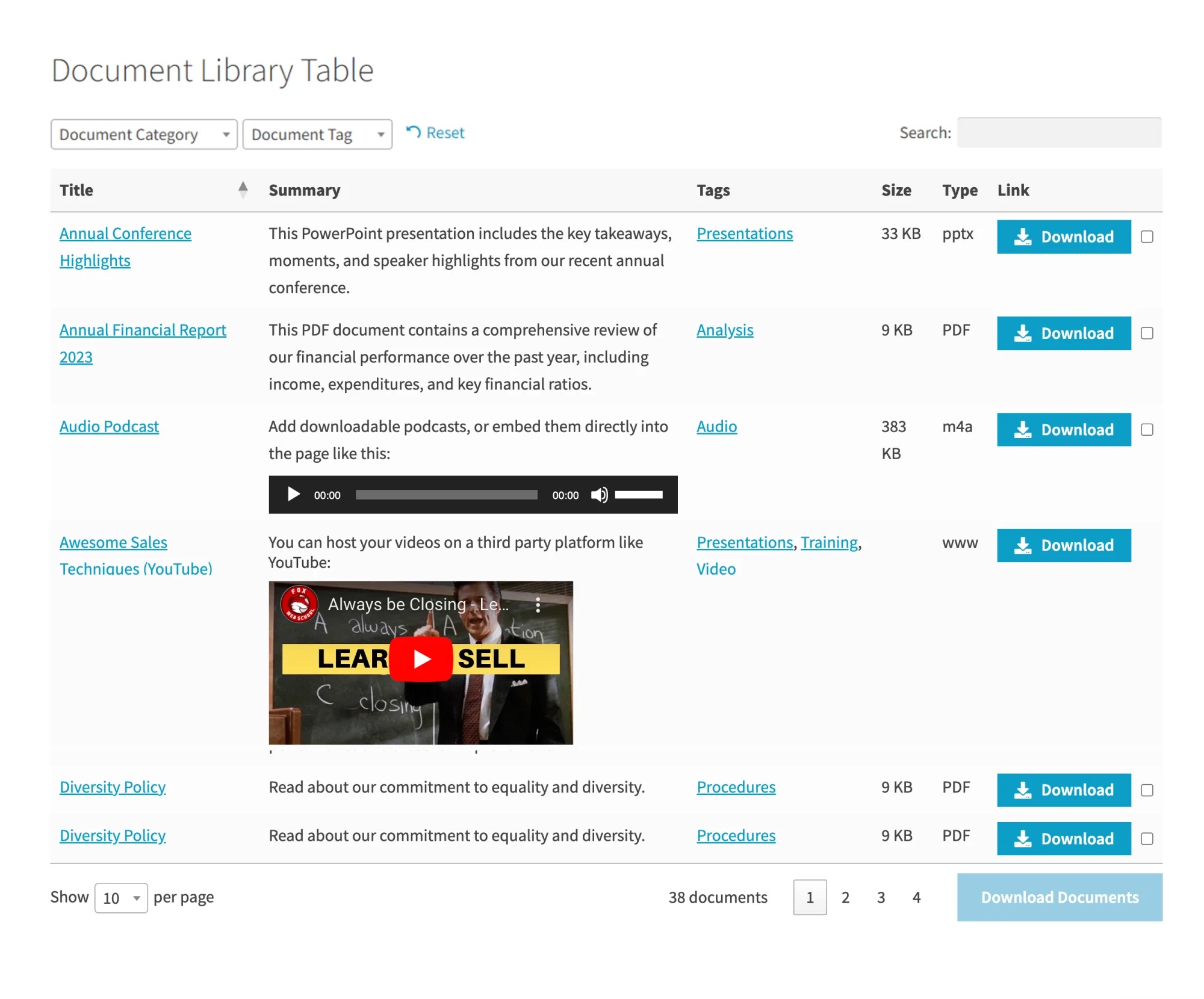
Once a collection passes a few dozen files, keyword search is what keeps the digital version faster than asking a colleague, which is the test that decides whether paperless habits stick.
Sharing and Publishing Without Printing
The last printed-paper habit to break is sharing, because handing someone a document is the moment people instinctively reach for the printer. Replacing that with a link is what finally makes an office paperless in daily use.
For a one-off file sent to one person, emailing a link or attachment is fine. The harder case is the document lots of people need on an ongoing basis, like a staff handbook, a set of forms, council minutes or a library of reports.
Emailing those one by one doesn’t scale, and burying them in a web page nobody can search just moves the problem online.
This is the gap we built Document Library Pro to fill. It publishes your files as a searchable document library on your own site. Visitors search by keyword, filter by category, sort the columns, and preview a document in the browser without downloading it. You can keep a library public or restrict it to specific people, depending on who the documents are for.
It works either as a WordPress plugin or as an embed on Shopify, Squarespace, Wix, Webflow, a custom site or an intranet. So the library sits on the website you already have rather than being a separate system people log into.
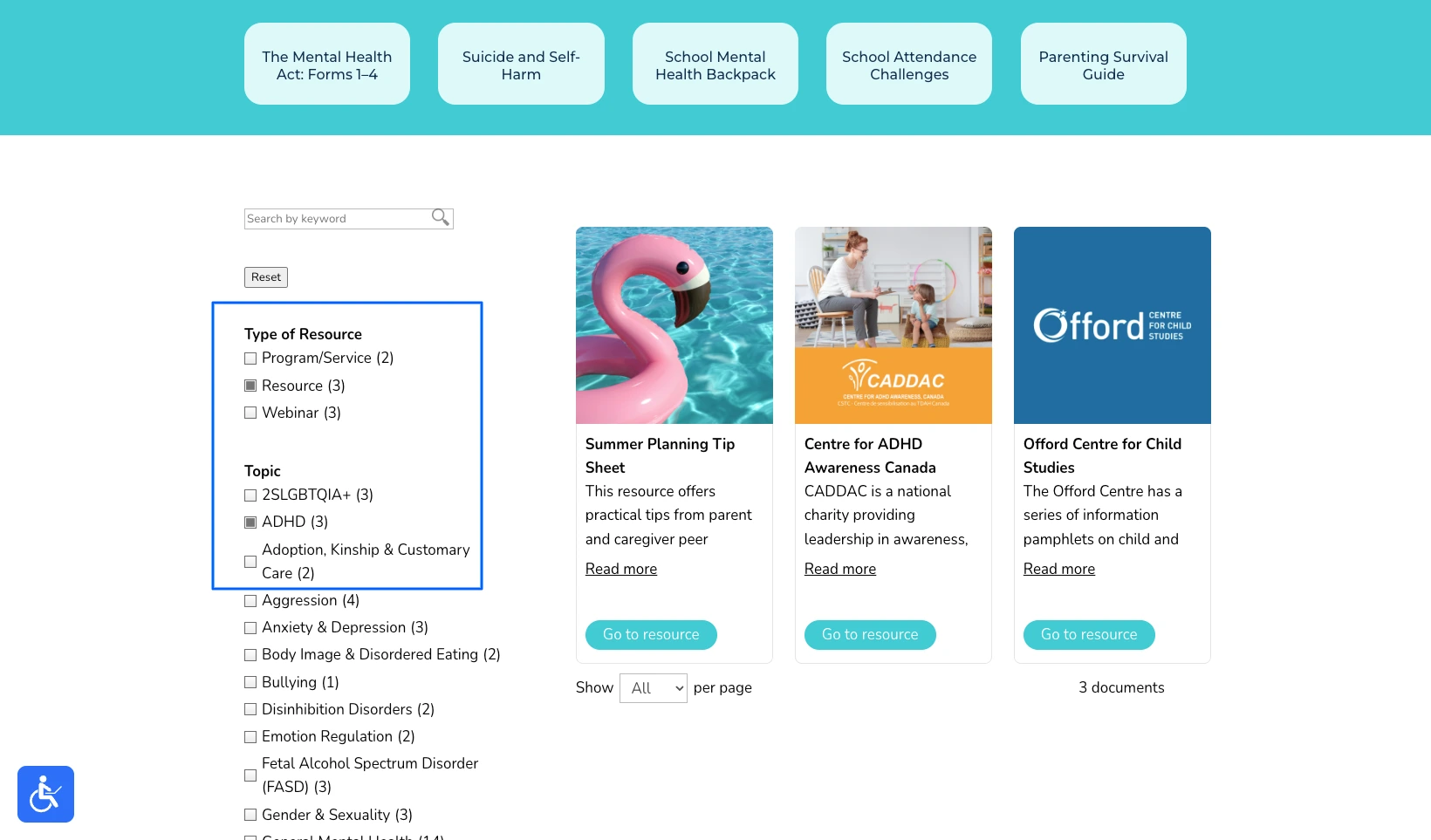
When we analyzed 500 sites that use Document Library Pro, the most common use was publishing exactly these long-lived documents, with PDFs the dominant file type. The libraries are particularly popular with nonprofits, health organizations, councils and membership associations.
All of those organizations once would have mailed or printed the same documents. Putting them in a searchable library is often the single biggest paper saving these organizations make.
Common Reasons Paperless Projects Stall
Most paperless efforts don’t fail because the technology is hard. Instead, they stall for a few predictable reasons which you can easily avoid:
- Trying to scan everything at once. The team wastes capacity digitizing old archives that no one wants, and never get round to adding the documents that people actually need. Start with what’s in active use.
- No agreed home for files. If people aren’t told exactly where documents now live then they end up keeping their own copies. This leaves you with paper and digital chaos side by side, which is worse than where you started!
- Search that’s worse than the cabinet. If finding a file digitally is slower than the old way, people revert to paper. Findability is essential.
- Skipping the people, focusing on the tools. Paperless is a habit change as much as a software one. Give your colleagues a short briefing on where things live and how to share a link to ensure they actually use the new system.
For a small team, none of this needs to be a big project. Small businesses in particular can go mostly paperless with the tools they already pay for, plus an online home for the documents they share publicly.
Frequently Asked Questions About Going Paperless
What Is a Paperless Office?
A paperless office is one where documents are created, stored, shared and read digitally by default, with paper used only when it’s genuinely necessary. The digital file is treated as the original and authoritative copy rather than a backup of a printout.
How Do I Start Going Paperless?
Start by scanning the documents people use regularly to searchable PDFs, then choose one agreed place for each set of files to live. Add a simple folder or category structure so files are easy to find, and switch from printing to sharing a link. Leave old archives until last, or skip them entirely under your retention rules.
Do I Need to Scan Every Old Document?
No, and trying to is the most common reason paperless projects stall. Scan the documents that are in active use, since those are the ones costing you time on paper. Older records can stay as they are, or be disposed of according to how long you’re required to keep them.
How Should I Share Documents Without Printing?
For a single file sent to one person, a link or email attachment is enough. For documents lots of people need on an ongoing basis, publish them in a searchable library on your website or intranet. People can then find and open them themselves, rather than waiting for emailed copies one at a time.
Can Document Library Pro Help Run a Paperless Office?
Yes. Document Library Pro publishes your files as a searchable, filterable library on your own site, so the documents people used to print or post are available online instead. It works as a WordPress plugin or as an embed on other platforms, and you can keep a library public or restrict it to specific people.
Start Small and Make Digital the Default
A paperless office comes down to a handful of habits rather than a single switch you flip. Capture what’s in use, give every document one home, make files easy to find, and share a link instead of a printout. Get those in place and you’ll soon find yourselves thinking about getting rid of the printer!
The most overlooked part of going paperless is getting shared documents in front of the right people without printing or emailing them around. When you’re ready for that step, you can try Document Library Pro free for 14 days and publish the documents your team and visitors need on the website you already have.
