
A document library turns a scattered pile of files into a searchable, organized collection that visitors can browse on their own. I’ll show you how to create one, and share six real examples from organizations doing it well.
Most organizations start with a simple list of file links on a page. That works fine until you pass about five files. Beyond that, people can’t find what they need, and you’re stuck updating a static list by hand.
Below, I’ll walk through:
- what a document library is, and why most file tools don’t do the job
- how to create one, step by step
- what to look for in document library software
- six real examples you can click through and copy
What a Document Library Is (and Why Most Tools Get It Wrong)
A document library is a searchable, filterable collection of files that people can browse, preview and download from your website. Think manuals, reports, policies, forms, meeting minutes or research papers, all in one organized place.
When we researched this space, one thing surprised us. Apart from SharePoint, very few tools focus on displaying documents in a public, searchable library. Most are built for storage and internal sharing, like Google Drive or Dropbox.
They keep files well, but neither one publishes a tidy, searchable library on your own site. At the same time, more organizations are now required by law to publish certain documents online, and there still aren’t many tools built for that.
That gap is the whole reason we built Document Library Pro, and the idea came straight from our customers. We already made software for displaying content in searchable tables, and the single most popular use turned out to be listing documents.
People kept asking for document-specific features like download buttons and in-browser previews. So we built it from the ground up to deliver exactly that.
It publishes your files as a page where people search by keyword, filter by category, sort the columns, preview a document in the browser and download what they need. They can also select several files and download them together as a zip.
Today it works on WordPress as a plugin, and it embeds into Shopify, Squarespace, Wix, Webflow, a custom site or an intranet with a simple embed code.
How to Create a Document Library, Step by Step
The process is the same whether you publish on a WordPress site or embed the library into another platform. It breaks down into six steps.
Step 1: Gather and Organize Your Files
Collect every file you want to publish in one place. Group them the way visitors will look for them, by category, department, year or product line. A little structure now saves a lot of scrolling later. Most libraries are built around PDFs, but you can include Word documents, spreadsheets, images and more.
Step 2: Choose Where the Library Will Live
Decide which site the library belongs on. If you run a WordPress site, you’ll add it as a plugin. On Shopify, Squarespace, Wix, Webflow, a custom site or an internal intranet, you’ll add it with a simple embed code instead. Either way the library sits on your own site, not a separate system people have to log into.
Step 3: Add Your Documents
Upload your files, or point to ones you already host elsewhere. For a large collection, a bulk import handles hundreds of files at once instead of adding them one by one. As you add each document, give it a category and any extra details you want people to filter or search by, such as a publication year or a document type.
Step 4: Pick a Layout
Choose how the library looks:
- A table for formal records, where columns and sorting matter.
- A grid for visual documents like reports with cover images.
- A folder view for browsing large collections by topic.
Step 5: Set Up Search, Filters and Sorting
Turn on the search box and the filters that match how people look for documents. Visitors can then type a keyword, narrow by category, sort a column, and preview a file in the browser before downloading. They can also tick several files and download them together as a zip.
Step 6: Set Access and Publish
Now set who can see the library. Keep it public, put it behind a password, or restrict it to members who log in. You can also ask visitors for their email before they download, which turns a resource library into a way to capture leads. When you’re happy, publish the page or paste the embed code into your other site.
You can build all of this with Document Library Pro and try it free for 14 days.
What to Look for in Document Library Software
If you’re comparing tools, these are the features that separate a real library from a dressed-up list of links. They’re worth checking against anything on your shortlist.
- Search, sorting and filters. Visitors should reach a document by typing a keyword or narrowing by category, not by scrolling a long page.
- In-browser preview. People can read a file in a lightbox before they decide to download it.
- A choice of layout. A table suits formal records, a grid suits visual documents, and a folder view suits browsing large collections.
- Access control. Some libraries stay public, while others sit behind a password or a members-only login.
- Publishing on your own site. The library should live on your website or intranet, on whatever platform you already run.
This is where the big-name tools fall short. SharePoint is built for internal, logged-in document management inside large organizations, not for publishing a library the public can browse. Google Drive and Dropbox are great for storing files and sharing individual ones with named people, but neither publishes a searchable library on your own site.
A password protects who can browse the library, but on its own it doesn’t lock the underlying file links. So if a document is genuinely confidential, put the library on a site that’s already private, such as an internal intranet, rather than relying on the password alone.
6 Real Document Library Examples
Next, I’ll share some examples of real-life document libraries that other organizations have built. When we looked at 500 organizations using Document Library Pro, most were nonprofits and charities, healthcare providers, government and parish councils, and membership associations. The examples below come from exactly those sectors, and you can click through to the live version of every one.
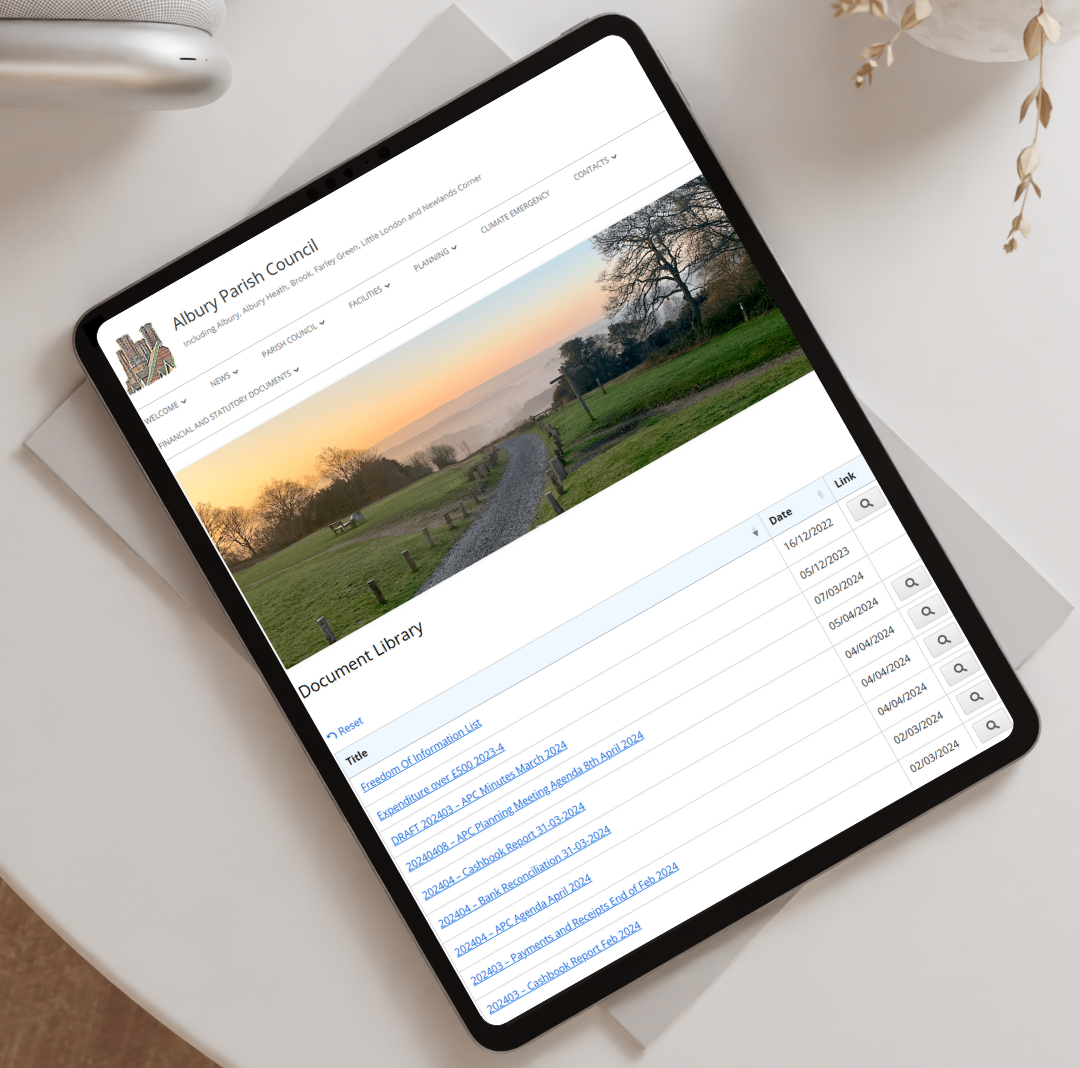
A parish council has to publish certain documents by law, and Albury Parish Council does it with a sortable table of policy and planning files. Residents preview each document in the browser, then download the one they need. For a small council with no technical team, that self-service replaces a long page of links nobody could search.
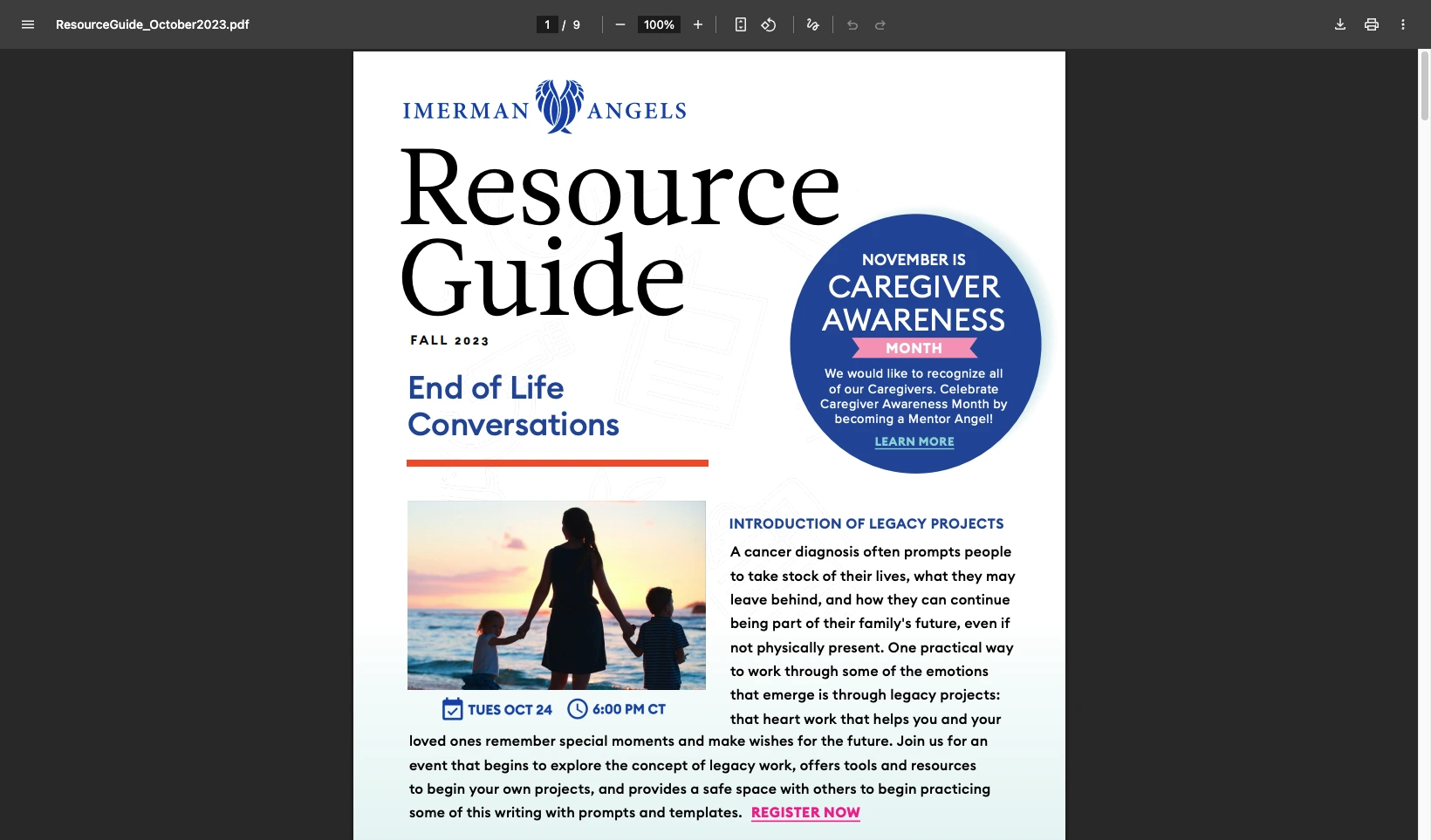
Imerman Angels, a cancer-support charity, started with files scattered across different places and outdated links still reaching the public. They moved everything into one library with a grid layout and download buttons, and they can now see which resources people use most.
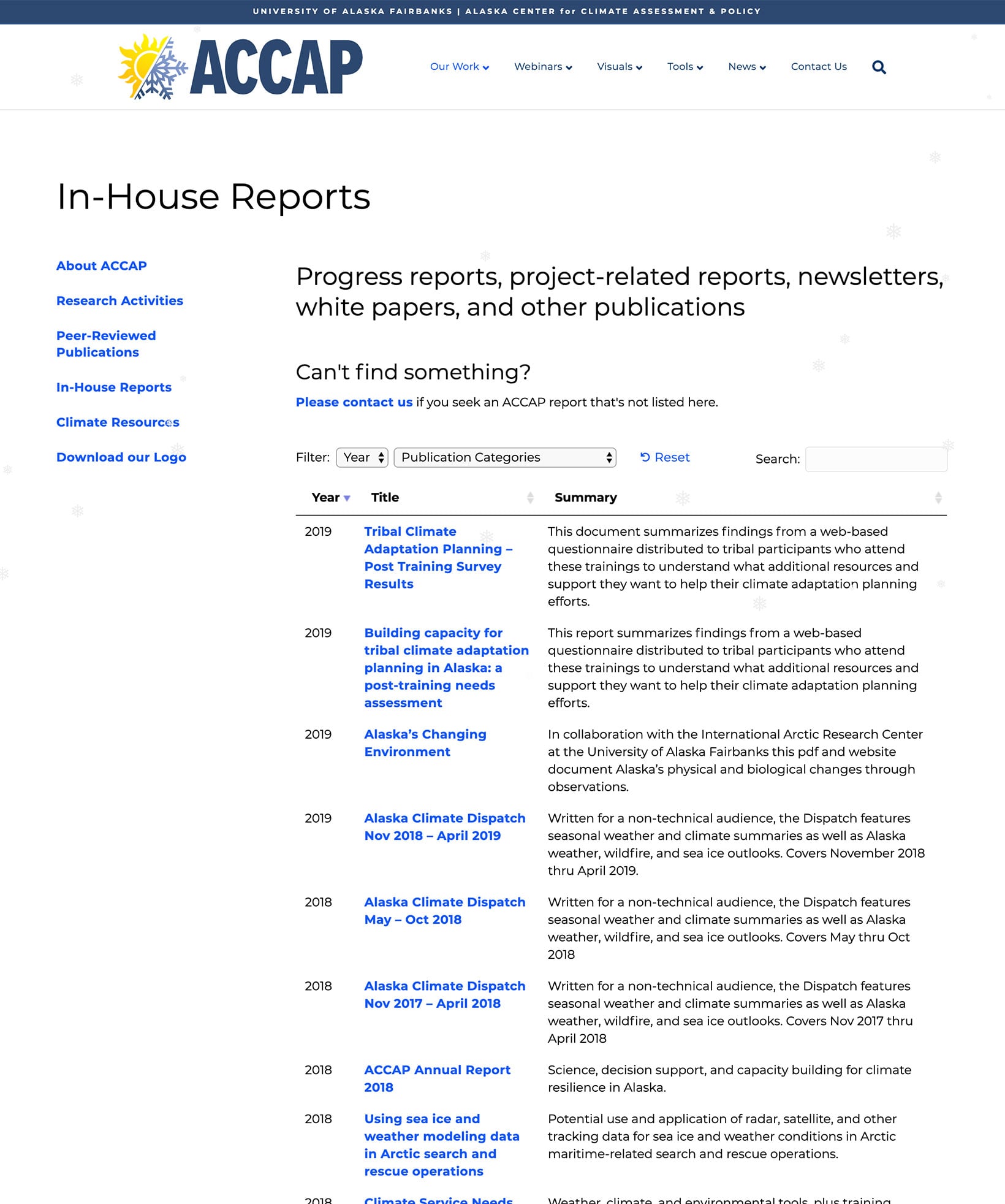
The International Arctic Research Center publishes papers, case studies and resources for the main center and several research groups. Each collection sits in a searchable table with filter dropdowns, so a researcher finds a specific publication in seconds instead of emailing to ask for it.
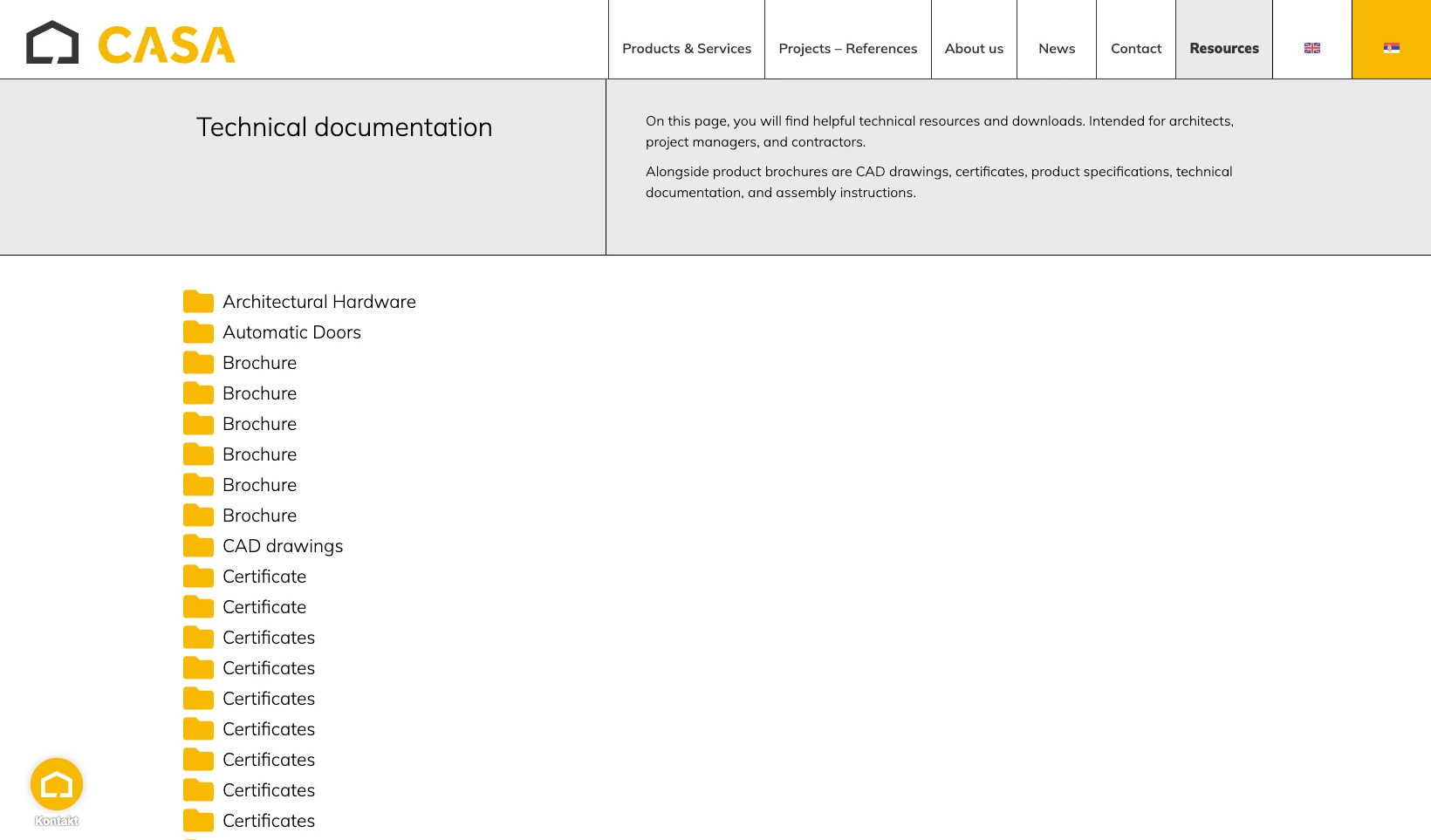
The idea works just as well for a business. CASA Architectural Hardware had certificates, manuals, CAD drawings and technical specifications spread across different pages. They pulled everything into a single library organized by product category, so architects and contractors download the right datasheet from one place.
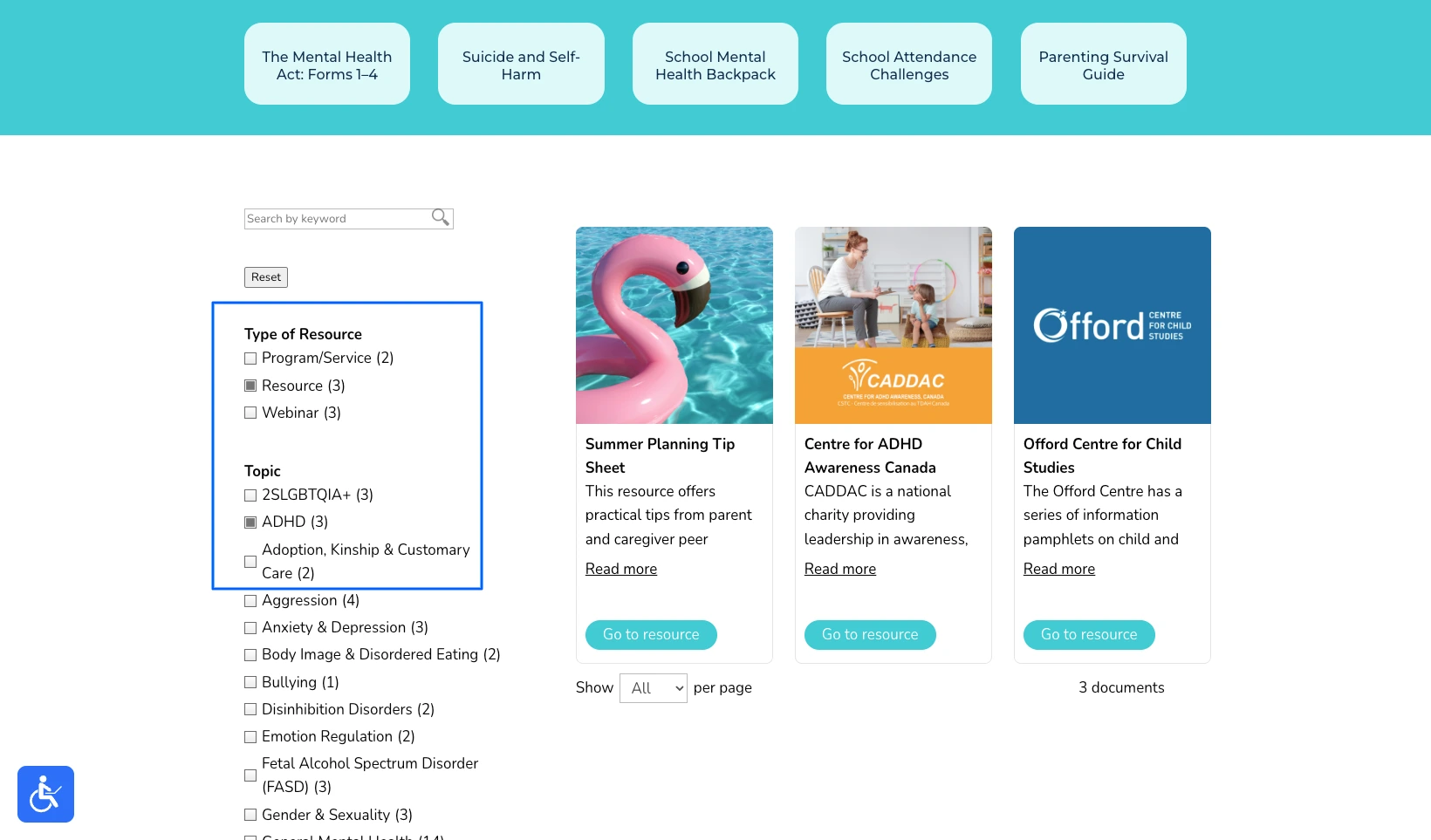
Children’s Mental Health Ontario turned a long, unstructured resource page into a family hub. Parents filter by topic and find what they need quickly, which matters a great deal when someone is already stressed and short on time.
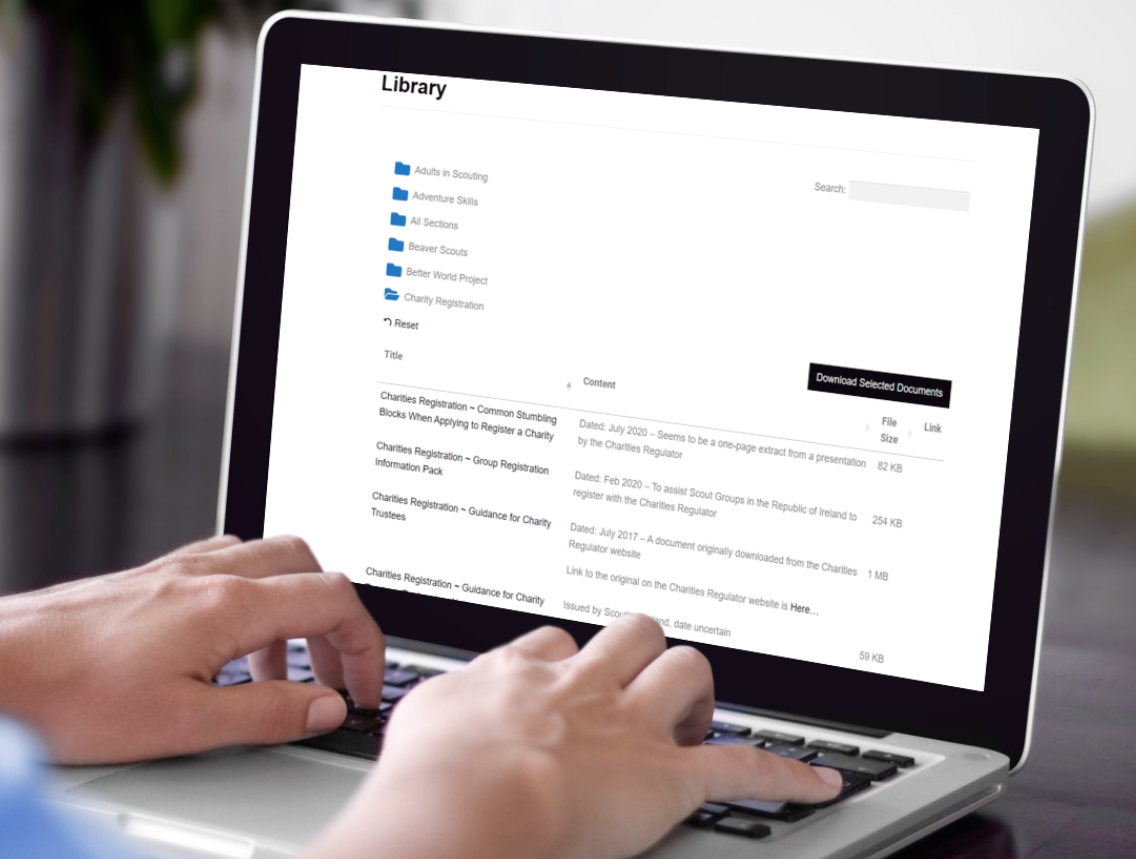
Scouting Ireland had outgrown a page of links, with hundreds of articles, policies and forms for volunteers. They organized everything into folders, so a leader opens the right one and downloads a whole set of documents in a single click.
Whatever kind of documents your organization needs to share, you can display them with Document Library Pro in a flexible library set up to match exactly how your visitors search and browse.
Frequently Asked Questions
How Do I Create a Document Library?
Collect your files, group them into categories, then add them to document library software like Document Library Pro. Choose a layout, turn on search and filters, set who can access it, then publish the page or embed it into your site.
What Is Document Library Software?
Document library software publishes your files as a searchable, filterable library on your website. Visitors find, preview and download documents instead of hunting through a list of links or logging into a separate storage system.
Can I Add a Document Library to Any Website?
Yes. Document Library Pro works as a WordPress plugin, and it embeds into Shopify, Squarespace, Wix, Webflow, a custom site or an intranet with a simple embed code.
Can People Search Inside the Documents?
Yes. Visitors search document titles, categories and details straight away, and full-text search inside PDF files is on the way.
How Many Documents Can a Document Library Hold?
There’s no practical limit for most organizations. The examples above range from a few dozen council files to hundreds of documents for a national membership body, all in one searchable library.
Creating Your Document Library
If your goal is to publish documents people can search, preview and download, a dedicated document library beats a static list of links or a storage drive nobody can browse.
We built Document Library Pro to be the best software of this type on the market. It handles everything from council minutes to technical datasheets, runs on any platform, and keeps the library on your own site.
If you need full version control and approval workflows for internal editing, that’s a different category of software. But for publishing a library your visitors can use, you can try Document Library Pro free for 14 days.
