
Almost every organization ends up sitting on a pile of PDFs. They’re the default format for manuals, datasheets, reports, policies and forms, so they build up fast. The usual home for them is a long list of download links on a page. That holds up right until someone needs one specific file and can’t tell it apart from the rest without opening each one.
A PDF library fixes that. Instead of a flat list of links, you get a searchable, filterable page where colleagues or visitors find the right PDF in seconds, preview it without downloading, and download only the ones they want. I’ll explain what makes a good PDF library, how to build one on any website, and where it beats dropping files into Google Drive.
The Trouble With PDFs as Links
The problem with a PDF is that a link tells you almost nothing about it. A filename like “datasheet-v3-final.pdf” could be anything, and a visitor has to download and open it to find out.
Stack up a few dozen of those on a page, and finding the right one becomes a chore. That’s the point where people give up and email you instead of helping themselves.
Search engines don’t rescue you either. Google indexes PDFs, but it sends people straight to the raw file rather than to a page on your site where they could browse related documents. So even when someone finds one of your PDFs, they land on a dead end instead of your library.
Features of a Searchable PDF Library
Some people call it a PDF library and others a searchable PDF archive, but it’s the same idea: turning that pile into something people can use. A good one gives you:
- Search and filters, so a visitor types what they need and narrows it down.
- Categories and tags, to group PDFs by product, year, department or topic.
- In-browser preview, so people read a PDF in a lightbox without downloading it.
- Clear titles and descriptions, in place of a cryptic filename.
- An optional email gate, for when you want to capture a lead before someone downloads a report.
Where the library lives is up to you. Some organizations publish a PDF library on their public website, so visitors can find datasheets, reports or application forms for themselves. Others keep one inside an intranet, where colleagues reach internal documents like policies, templates and guides. The same library works either way.
Building a PDF Library With Document Library Pro
This is the problem we built Document Library Pro to fix. It takes a pile of PDFs and turns them into a searchable PDF library, where people search by keyword, filter by category, and preview each PDF in the browser without downloading it.
When someone does want a copy, they download it in a click, or select several PDFs and download them together as a single zip file.
It’s become Barn2’s best-seller since we launched it in 2021, and when we looked at how 500 organizations actually use it, PDFs were the most common file by far. The heaviest users turned out to be nonprofits, healthcare teams and councils, many of them now required to publish documents online.
You can run it wherever your site lives. On WordPress, it installs as a plugin and publishes your PDFs directly on the site. On Shopify, Squarespace, Wix, Webflow, a custom build or an internal intranet, an embed code drops the same library straight into a page.
Here’s the order I’d build it in:
- Add your PDFs. Upload them, or link to files you already host. Each one gets a proper title, a description, a category and an optional cover image, so it’s no longer just a filename.
- Organize by category and tag. Group PDFs by product line, year, department or document type. These become the filters your visitors use.
- Switch on search and filters. A search box and a few filter dropdowns let people find a PDF without scrolling.
- Enable preview and downloads. Let visitors open each PDF in a lightbox to read it in place, download a single file, or select several and take them as a zip.
- Add an email gate, if it earns its place. For high-value PDFs like reports or whitepapers, you can ask for an email address before download.
- Publish it. Put it on its own page, or embed it on any website or intranet.
PDF Library Examples
A good example of a PDF library is CASA Architectural Hardware, a supplier whose customers are architects and contractors. They had certificates, manuals, CAD drawings and technical specifications spread across different pages, which made them hard to maintain and even harder to find.
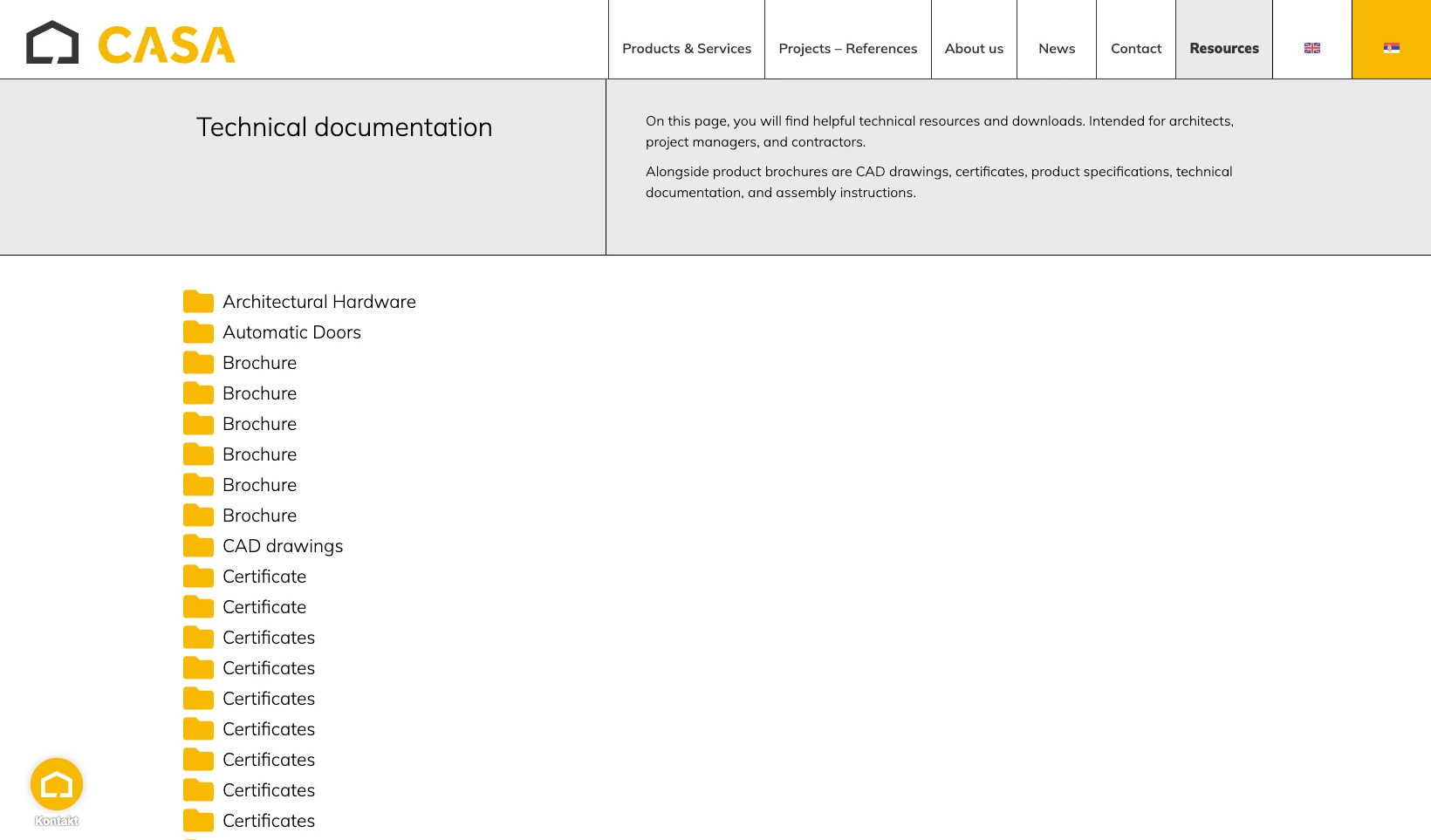
They moved everything into a single PDF library organized by product category, so a contractor can now search for a product and download its datasheet from one place.
Albury Parish Council does much the same with its public documents. It lists policy and planning PDFs in a sortable table, and residents preview each one in a lightbox before downloading.
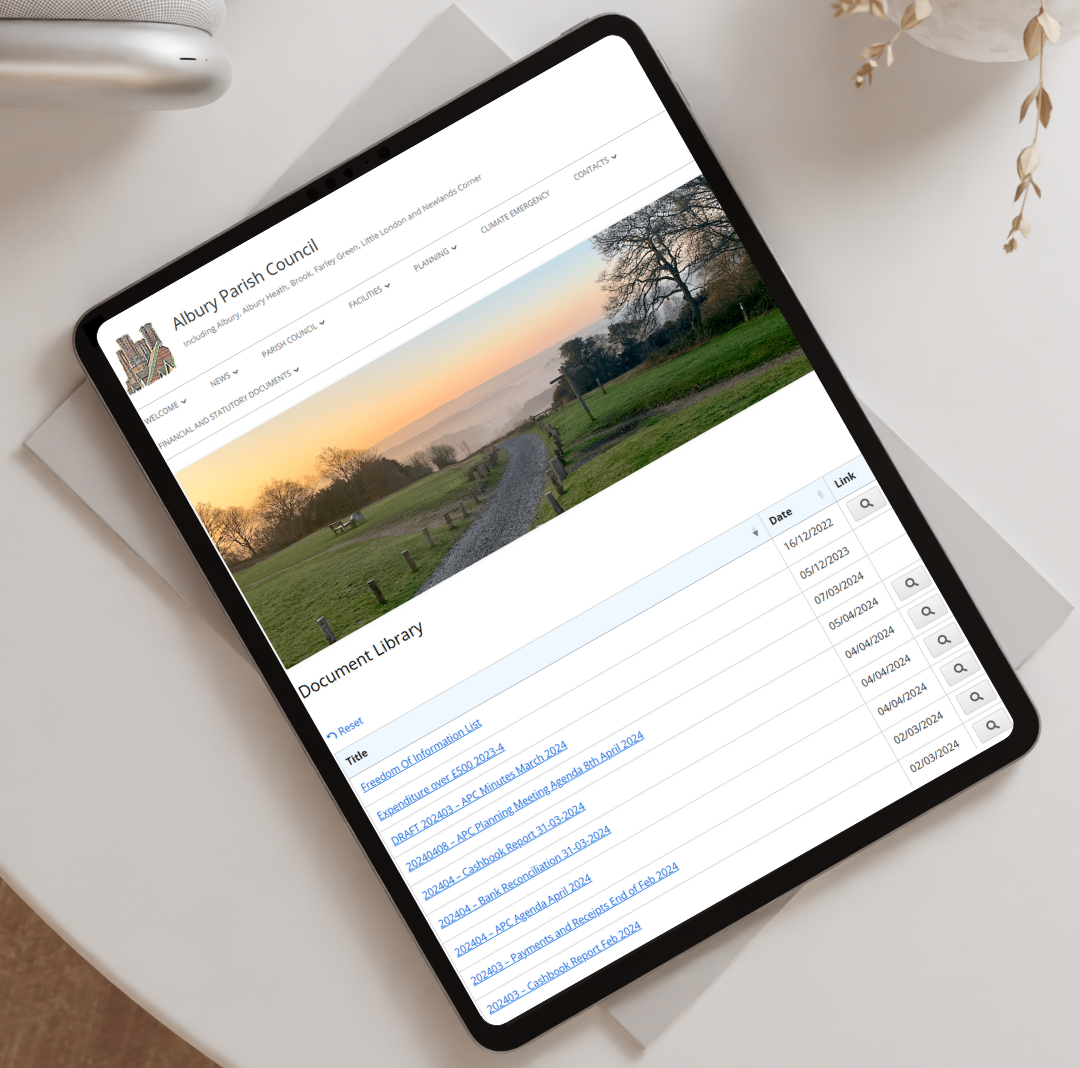
For a small council with no technical team, a self-service PDF library is the whole point.
PDF Library or Google Drive?
Plenty of people try Google Drive first, and for sharing the odd file it’s perfectly good. Where it falls down is publishing. A Drive folder doesn’t give visitors a searchable online PDF library on your own website. Instead, you end up pasting a separate link for each file, and the result reads as a list of links rather than part of your site.
A PDF library keeps everything on your domain, searchable and branded, which matters when the documents are part of how people judge your organization. You can build one with Document Library Pro on any website, and try it free for 14 days.
Frequently Asked Questions
Can People Search Inside the PDFs?
Yes. Document Library Pro makes your PDFs searchable, so visitors type what they’re after and land on the right document instead of scrolling a list.
Can I Add a Searchable PDF Library to Any Website?
Yes. Document Library Pro works as a WordPress plugin, or you can embed it into Shopify, Squarespace, Wix, Webflow, a custom site or an intranet.
Can I Require an Email Before Download?
Yes. Document Library Pro can ask visitors for an email address before they download a PDF, which is useful when a document doubles as a lead magnet.
Is a PDF Library Worth It?
If you’ve only got a few PDFs to share, a couple of links will do, and I wouldn’t build anything more. But once you have dozens of them and other people need to find the right one, a searchable PDF library saves everyone time. It also makes your documents look like part of your site rather than an afterthought.
You can build your own PDF library website with Document Library Pro and try it free for 14 days.
